
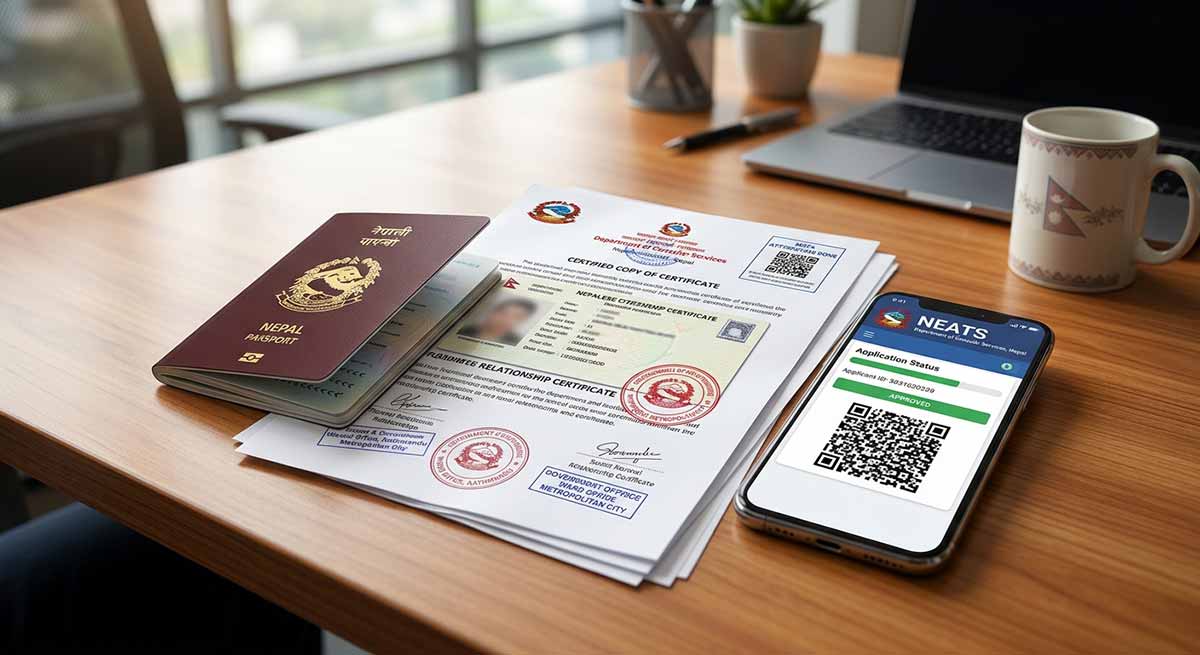
Are you planning to go abroad? You may be a Nepali student going to study in Australia, Japan, the USA, or Europe. Or you may be a worker going to Gulf countries like Dubai, Qatar, or Saudi Arabia. You may also need to check your school mark sheets.
If you want to use your Nepali documents in another country, you need Document Attestation. This simple guide explains everything about MOFA document attestation in Nepal.
What is Document Attestation ?
Document attestation means getting an official stamp and signature on your papers. When you apply for a student visa, work visa, or family visa, foreign governments want to know if your certificates are real. The government of Nepal checks your papers and puts an official seal on them. This seal proves that your documents are 100% real and legal.
Steps for Document Consular Attestation in Nepal
To attest your documents in Nepal for international use, you must follow a two-step process:
Step1 : Pre-Verification and Notarization: Getting your papers checked by local offices or line ministries first.
step 2 : Final Attestation by MOFA: Getting the final seal at the Department of Consular Services in Tripureshwor, Kathmandu.
Step 1 : Pre Verification and Notarization
Before you visit the MOFA office, you must get preliminary stamps on your documents.First, take your original documents to the correct office or ministry to check and stamp them. If you need English translations, a licensed Notary Public must sign and certify them. Here is the table showing where to go for each type of document:
| Type of Certificate | Issuing Authority | Verificaion Authority |
|---|---|---|
| Birth Certificate | Ward office of the concerned Municipality/Rural Municipality/Metropolitan/Sub-Metropolitan | Chief Executive Officer, Executive Officer or Designated Official of the concerned Municipality/Rural Municipality/Metropolitan/Sub-Metropolitan |
| Death Certificate | Ward office of the concerned Municipality/Rural Municipality/Metropolitan/Sub-Metropolitan | Chief Executive Officer, Executive Officer or Designated Official of the concerned Municipality/Rural Municipality/Metropolitan/Sub-Metropolitan |
| Marriage Certificate | Ward office of the concerned Municipality/Rural Municipality/Metropolitan/Sub-Metropolitan | Chief Executive Officer, Executive Officer or Designated Official of the concerned Municipality/Rural Municipality/Metropolitan/Sub-Metropolitan |
| Marital Status Certificate | Ward office of the concerned Municipality/Rural Municipality/Metropolitan/Sub-Metropolitan | Chief Executive Officer, Executive Officer or Designated Official of the concerned Municipality/Rural Municipality/Metropolitan/Sub-Metropolitan |
| Divorce Certificate | Ward office of the concerned Municipality/Rural Municipality/Metropolitan/Sub-Metropolitan | Chief Executive Officer, Executive Officer or Designated Official of the concerned Municipality/Rural Municipality/Metropolitan/Sub-Metropolitan |
| Relationship Verification Certificate | Ward office of the concerned Municipality/Rural Municipality/Metropolitan/Sub-Metropolitan | Chief Executive Officer, Executive Officer or Designated Official of the concerned Municipality/Rural Municipality/Metropolitan/Sub-Metropolitan |
| Migration Certificate | Ward office of the concerned Municipality/Rural Municipality/Metropolitan/Sub-Metropolitan | Chief Executive Officer, Executive Officer or Designated Official of the concerned Municipality/Rural Municipality/Metropolitan/Sub-Metropolitan |
| Name, Surname, or Spelling Correction Authentication | District Administration Office | District Administration Office |
| Bank and Financial Documents | Concerned Bank/Financial Institution | Nepal Rastra Bank |
| Educational Certificates | Concerned Board/Issuing Institution | Education and Sports Ministry attestation Section, sanothimi |
| Medical Certificate | Concerned Hospital | Ministry of Health and Food Safety Sukraraj Tropical and Infectious Disease Hospital Teku, Kathmandu |
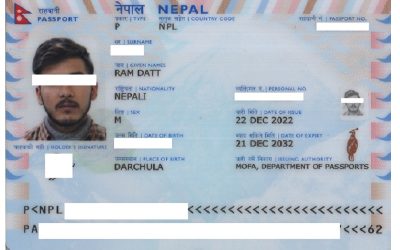
| Photocopy Authentication (Citizenship, Passport, Driving License) | Concerned Government Authority | Head of Office or Designated Officer |
| Certificate of Origin | Federation of Nepalese Chambers of Commerce and Industry (FNCCI) / Association | Ministry of Commerce and Supplies |
Step 2: Final Attestation |Get Mofa attestation in Nepal
After your documents get preliminary stamps, you must complete the final attestation at the Department of Consular Services (MOFA) in Tripureshwor, Kathmandu in three steps below.
-
- Apply for MOFA online form
- Online Payment & Appointment Booking
- Physical document stamping at MOFA Consular Department ,Tripureshwor.
How to Apply for MOFA online form
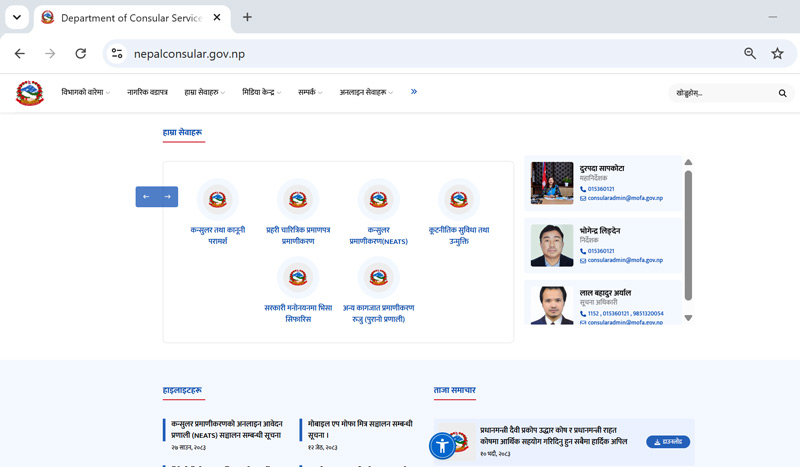
Mandatory digital registration prior to visit MOFA. Submit an online application through the official Nepal e-Attestation System (NEATS) portal. Visit the official website of consular department to begain the process.
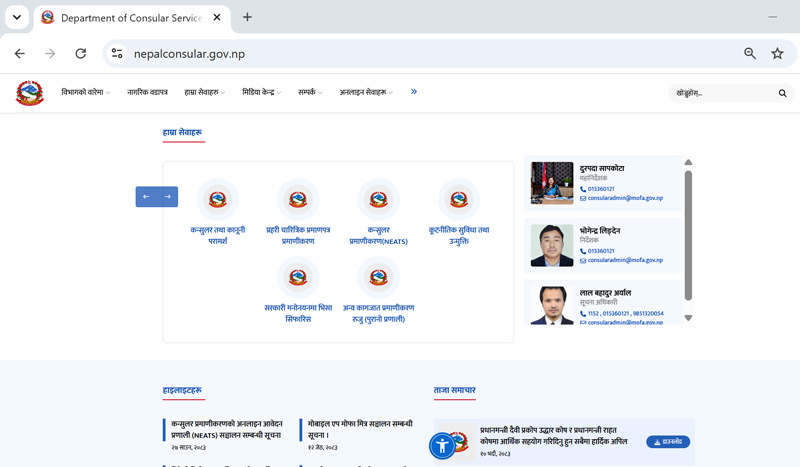
Click on NEATS icon to proceed for online submission.
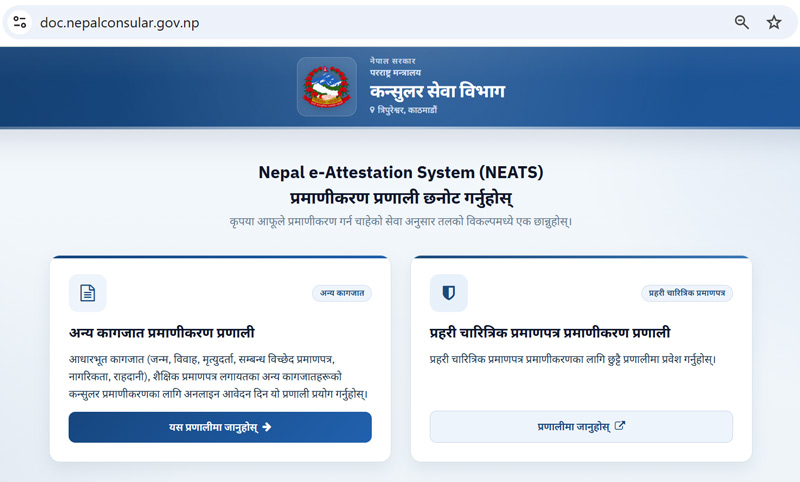
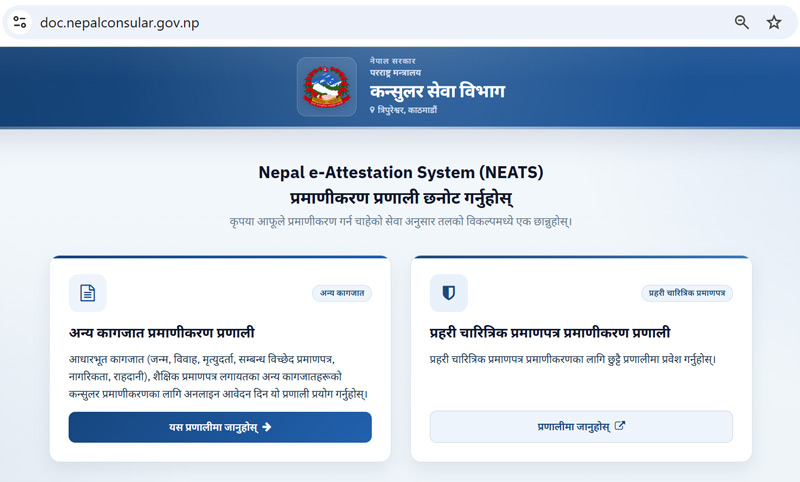
On the NEATS landing page, you will see two main categories for document attestation:
- Other Documents Attestation System: Choose this option to attest vital records (birth, marriage, or relationship certificates), academic transcripts, citizenship cards, passports, and general documents.
- Police Character Certificate Attestation System: Select this if you are applying specifically to Verify a police clearance report..
Simply click on your required service category to proceed to the application portal
Let’s dive into Other Documents Attestation System to attest vital records (birth, marriage, or relationship certificates), academic transcripts, citizenship cards, passports, and general documents. Click on Other Documents Attestation System.
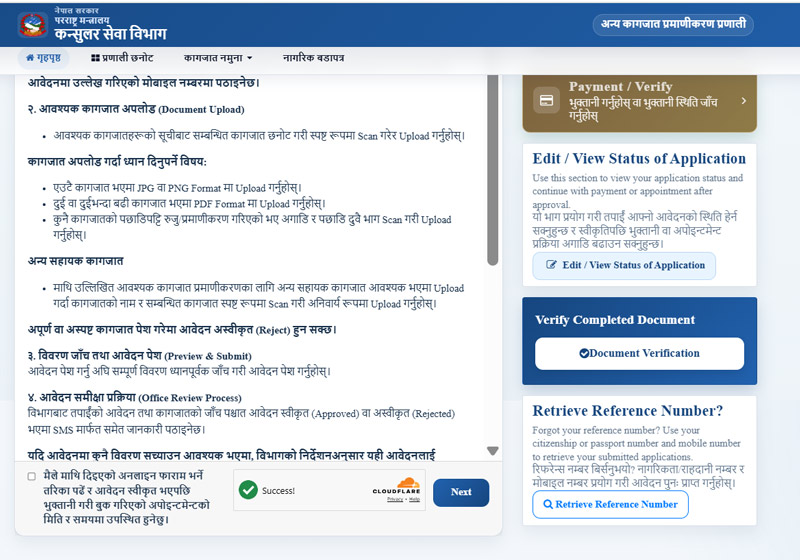
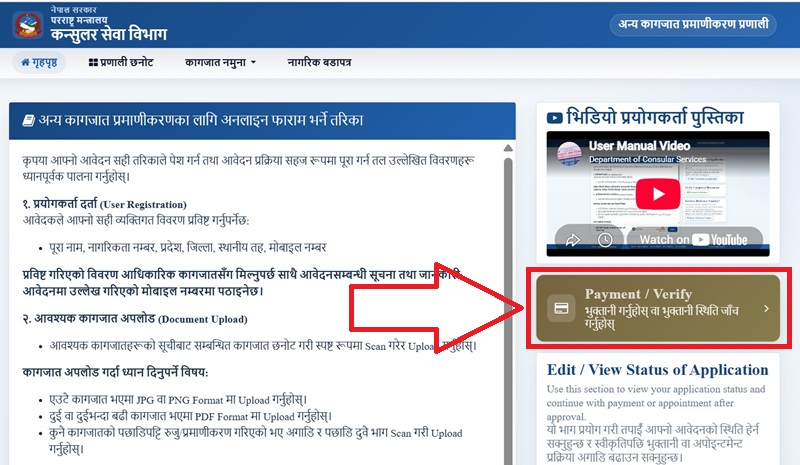
Before starting your application, carefully read the upload guidelines—use JPG/PNG for single pages and PDF for multi-page documents
Tip: Use the right sidebar if you need to track an existing application, complete a payment, or retrieve a lost reference number
.
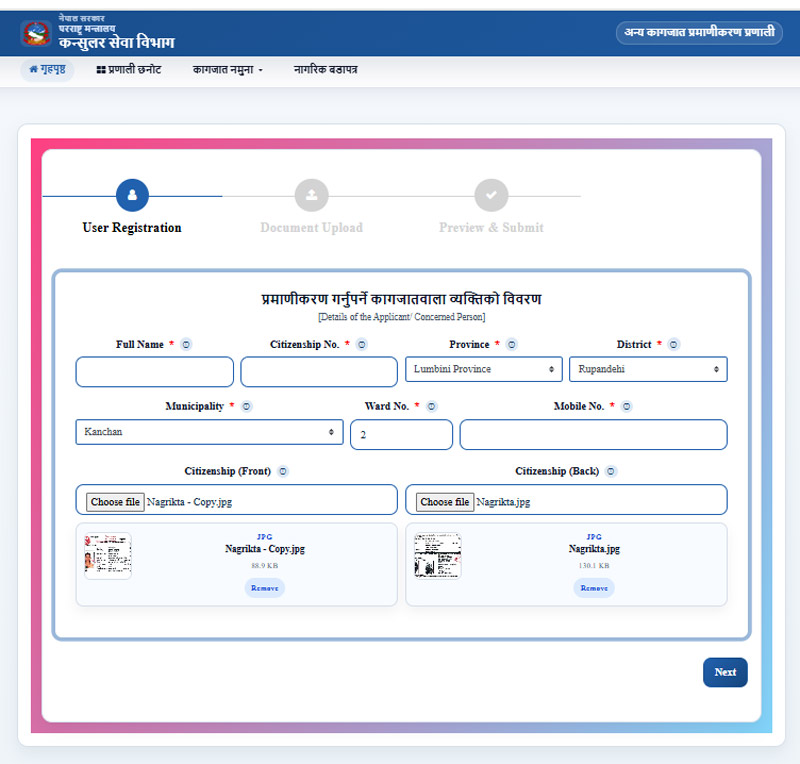
In the User Registration phase—the initial step of the online application process—applicants are required to provide complete and accurate personal information as stated on their official government identification documents:
Personal Information: Enter the applicant’s full name exactly as it appears on their citizenship card.
Identification Details: Input a valid Citizenship Certificate Number.
Permanent Address: Select the applicant’s permanent residence details using the structured dropdown menus, including Province, District, Municipality, and Ward Number.
Contact Information: Provide an active mobile phone number to receive critical SMS updates, application status notifications, and appointment details regarding the verification process.
Document Identification Upload: Upload clear, legible image files (JPG or PNG format) of both the front and back sides of the applicant’s original citizenship certificate. Ensure all text, photos, and official seals are fully visible without blur or glare to avoid rejection during review.
Once all required fields marked with an asterisk (*)—including uploaded citizenship previews—are verified, click the blue “Next” button at the bottom right corner to advance to the document upload section. You will get your reference number.
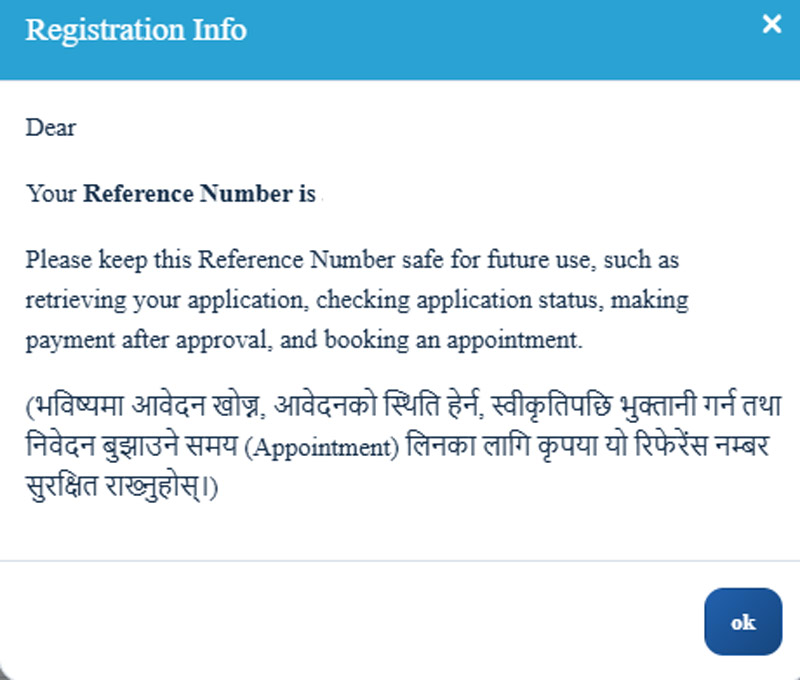
After you fill in your personal details, a popup box appears on the screen. It shows your personal Reference Number. You must save this number safely (write it down or take a screenshot). You will need it later to check your application status, pay the fees after approval, and book an appointment. Click “ok” to keep going
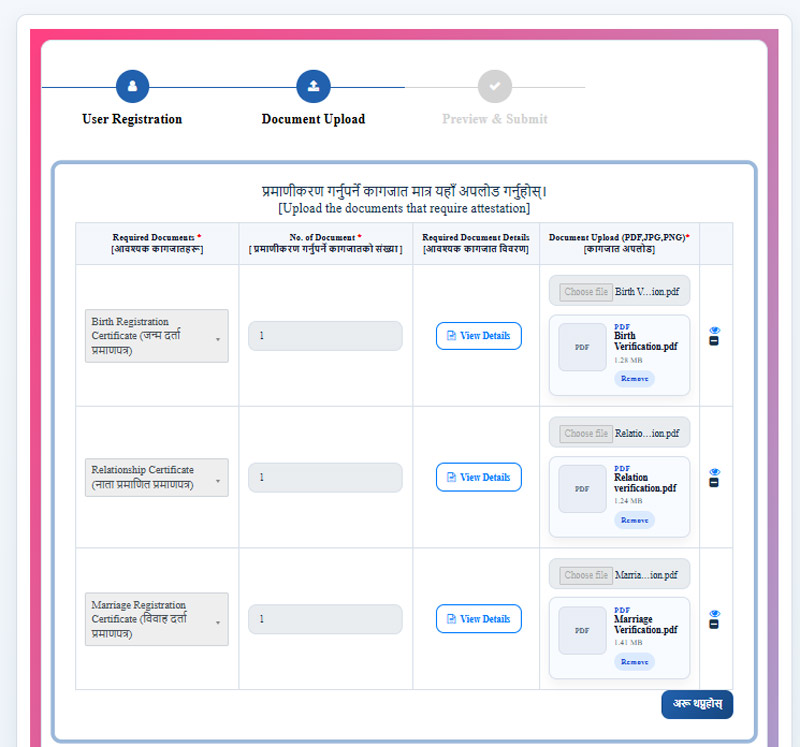
In this step, you upload the papers you want to certify. Choose Document Type: Select your document from the list (for example: birth certificate, relationship certificate, or marriage certificate). Enter Number: Write how many copies you are uploading. Upload Files: Add your scanned files in PDF, JPG, or PNG format. Add More: Click the blue button at the bottom right (अरू थप्नुहोस्) if you want to add more documents.
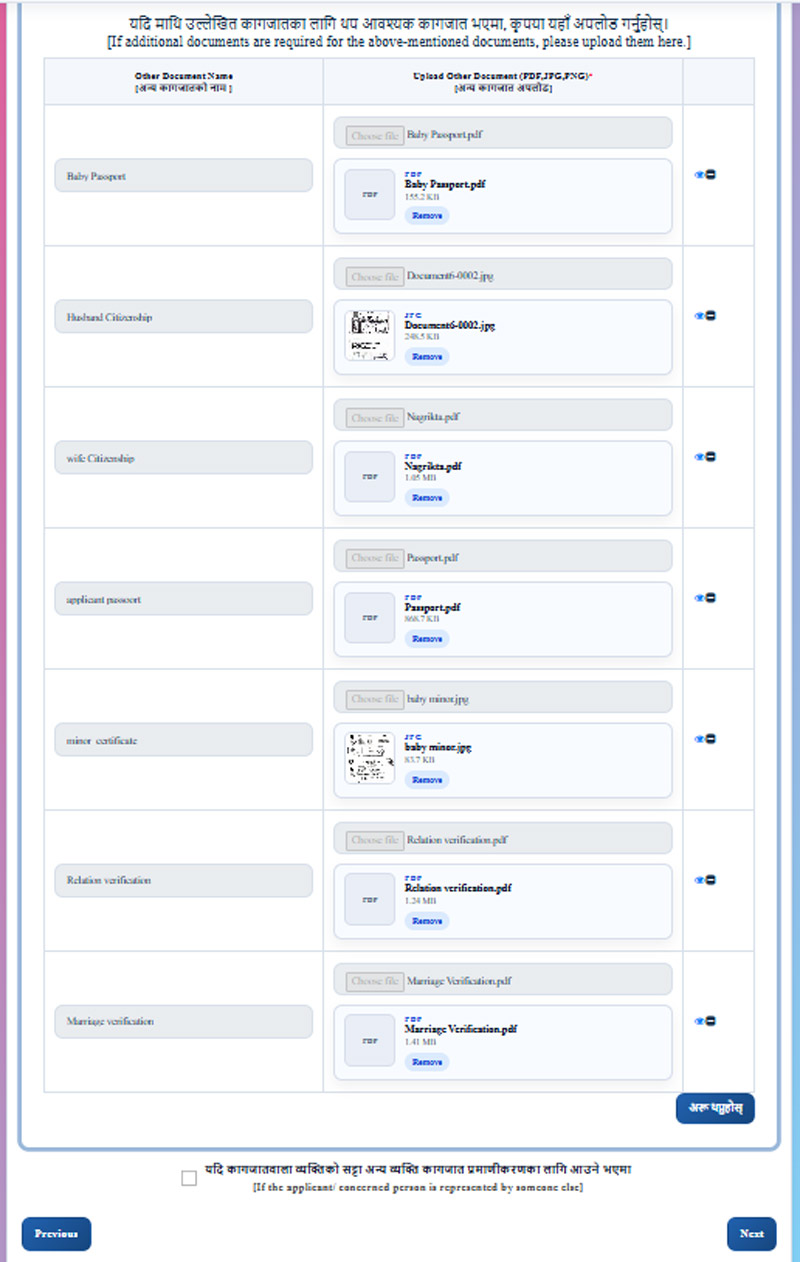
In this section, you can upload extra papers to support your main documents. Type Document Name: Write the name of your extra paper in the box (for example: passport, husband citizenship, or wife citizenship). Upload File: Add your scanned file in PDF, JPG, or PNG format. Add More: Click the blue “अरू थप्नुहोस्” button if you want to add more extra papers. Representative Box: Check the box at the bottom if another person will visit the office for you. Move Next: Click “Next” to see the final page, or “Previous” to go back
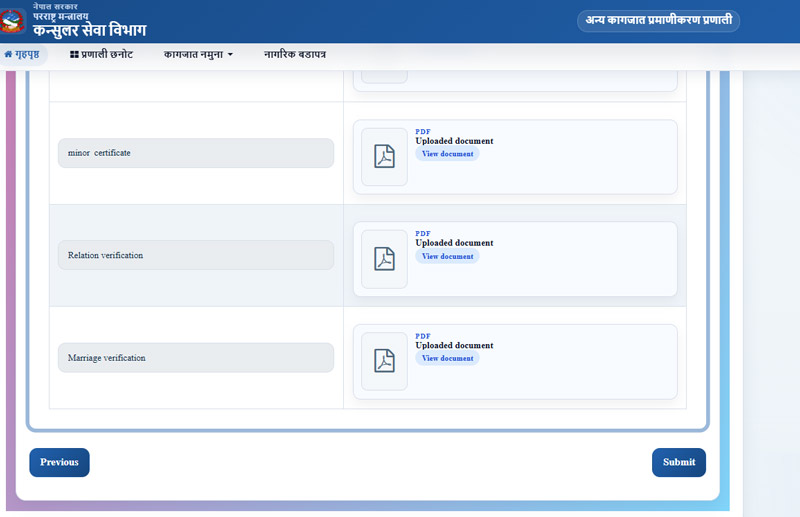
This is the last step before you send your application. Check Your Files: Look at all the documents you uploaded. Click “View document” to make sure every file is easy to read. Make Changes: Click “Previous” if you need to fix any mistake. Send Application: Click the blue “Submit” button to send your application.
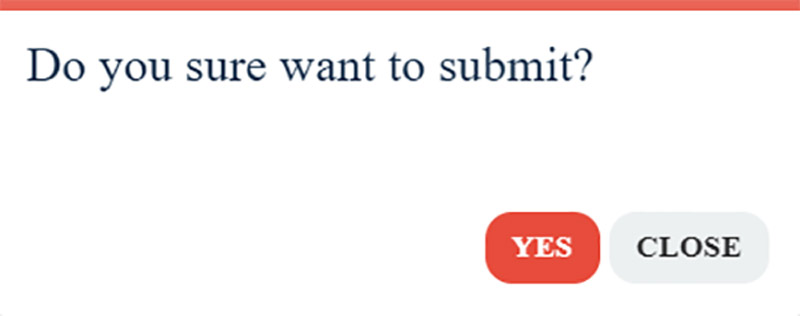
Pop up dialogue box will appear , click yes for submission of your consular attestation appointment.
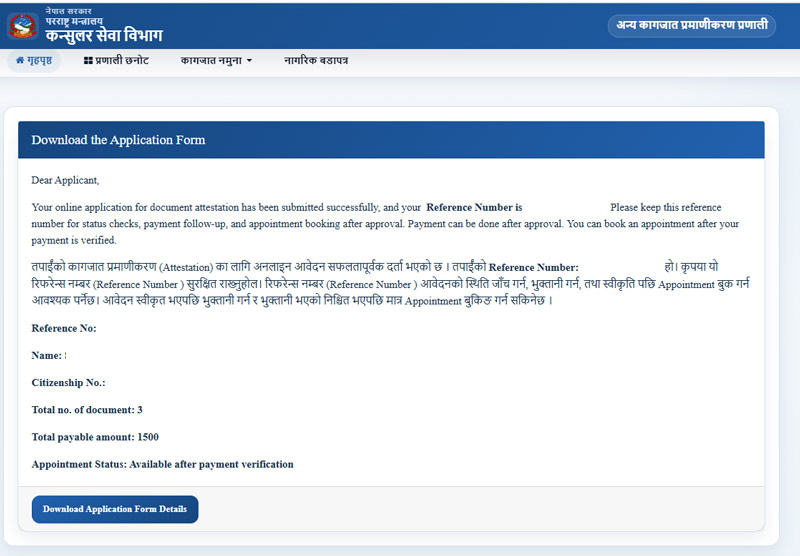
Your application is now sent successfully!
Confirmation Details: You can see your Reference Number, personal information, number of documents, and total fee on this screen.
Download File: Click the blue “Download Application Form Details” button to save a copy on your phone or computer.
What to Do Next: Wait for the department to approve your application. After they approve it, you can pay the fee and book your appointment.
MOFA consular online payment and appointment booking Guide
Within 24 hours of submitting your online application, the department will review and either approve or reject it. You will receive an SMS notification on your registered mobile number:
- If Approved: Follow the link or login to pay your attestation fees online. Once payment is confirmed, you can select an available date and time slot for your MOFA (Ministry of Foreign Affairs) appointment.
- If Rejected: Check the reason provided in the portal/SMS, fix the requested document or details, and resubmit.
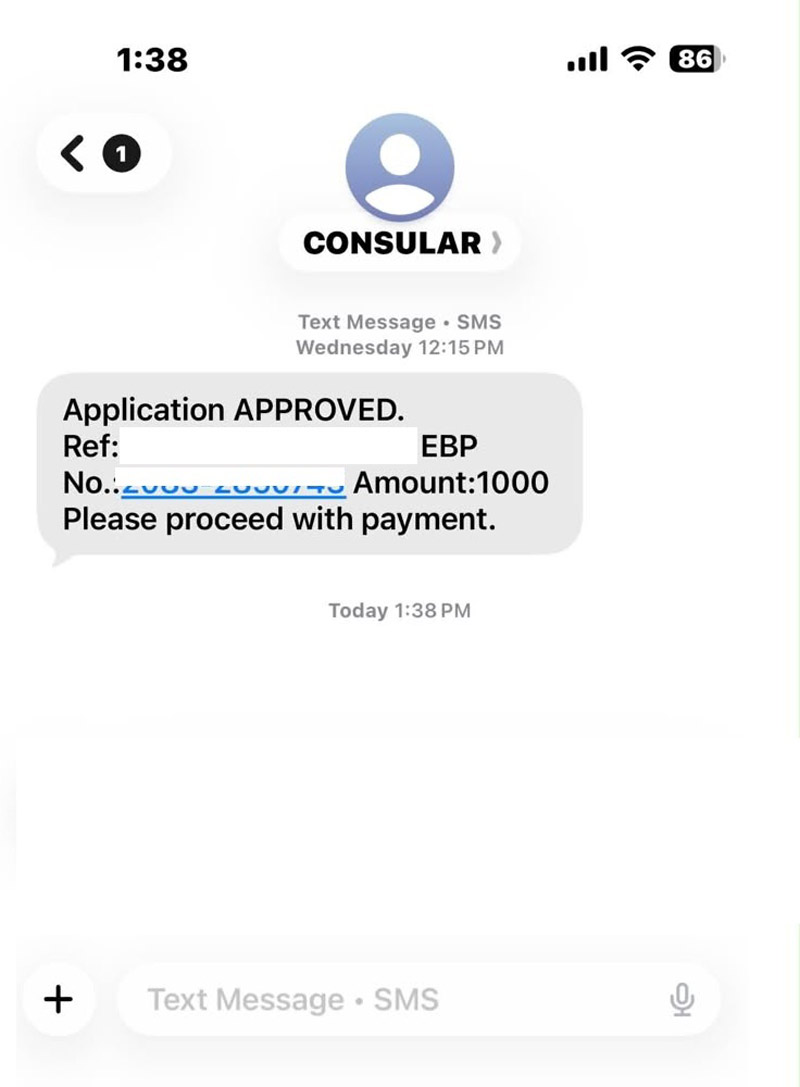
Once you receive your approval SMS from the Department of Consular Services, return to the NEATS Portal to complete the final steps of your application:
Click on Other Papers Attestation System.
Once you receive your verification SMS, log in to the NEATS Portal via the Payment / Verify option to proceed further making an appontment.
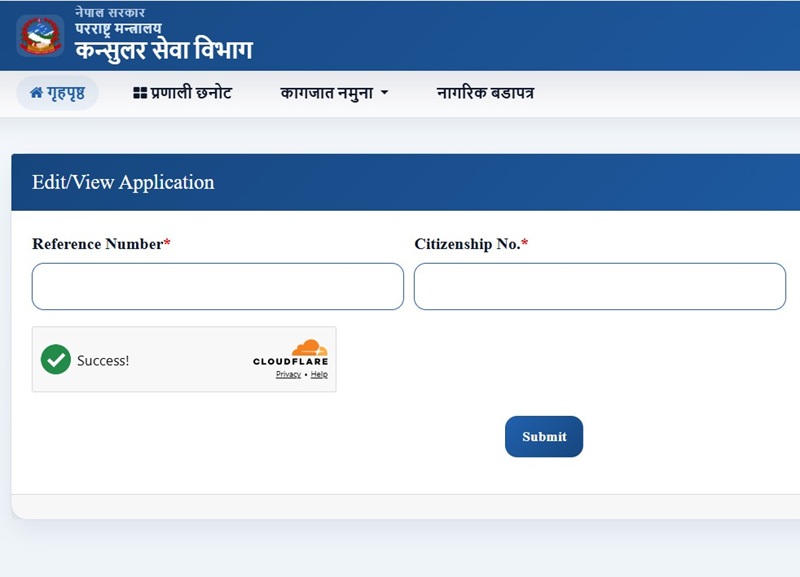
Enter your saved Reference Code (from your registration) along with the applicant’s Date of Birth to access your submitted application.
Once approved, click Pay Now button
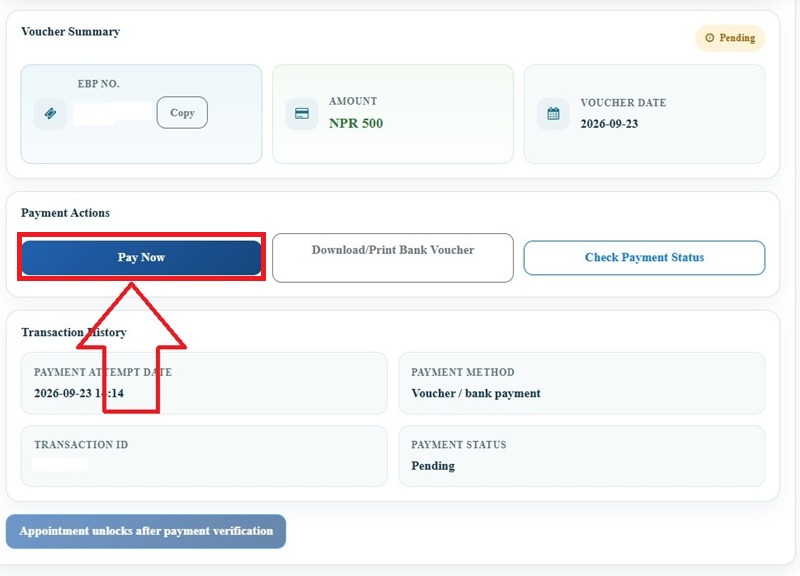
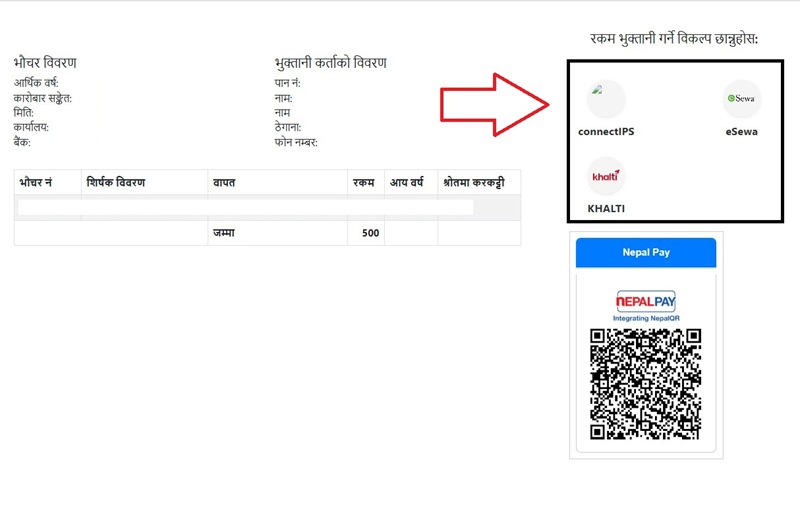
Review your application details and total payable amount. Select your preferred digital payment method (such as ConnectIPS, eSewa, or Khalti) using your EBP Payment Number provided in the approval message to pay the required attestation fees.
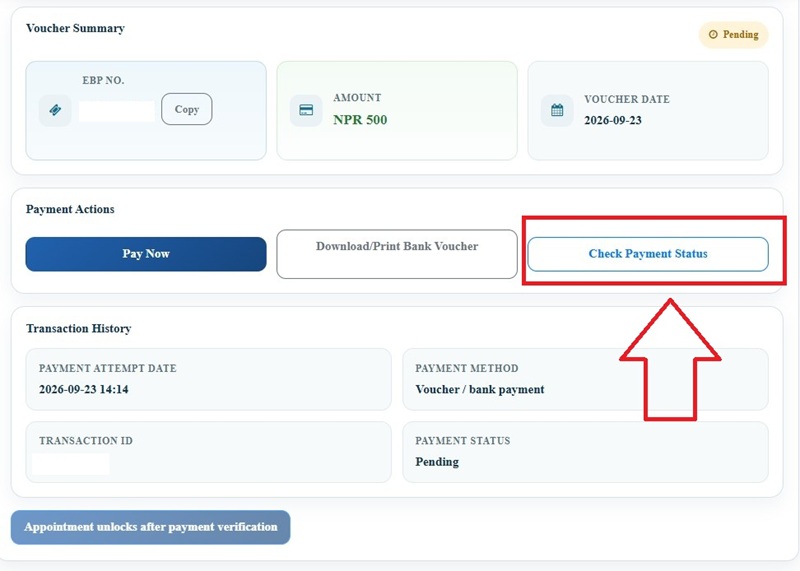
Once payment is completed now click on “Check Payment Status” to verify your payment.
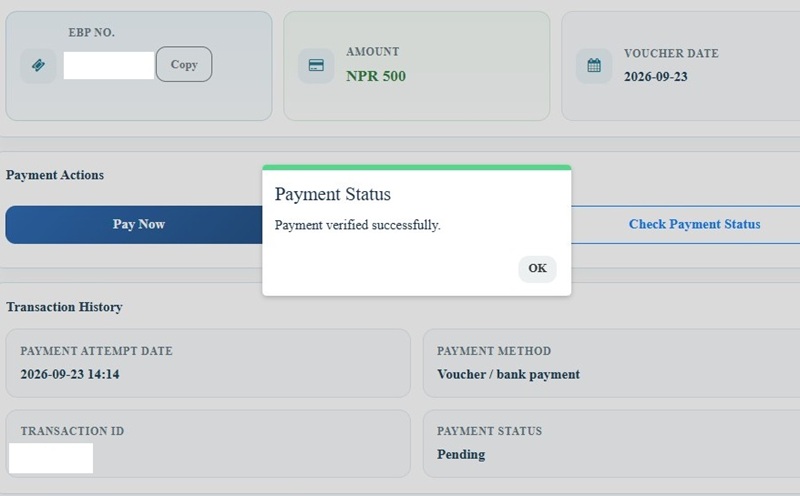
After your payment is verified by the system, the Appointment Booking option will unlock
After verified your appointment system is unlocked . Now click on Open Calander
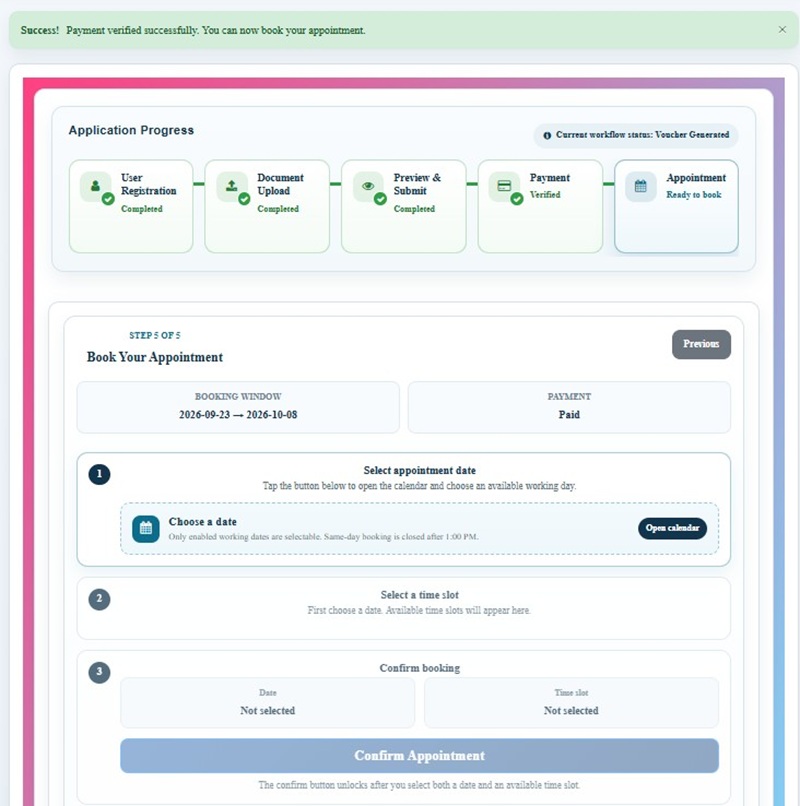
Select a convenient date and available time slot to visit the Consular Department in person for physical document verification.
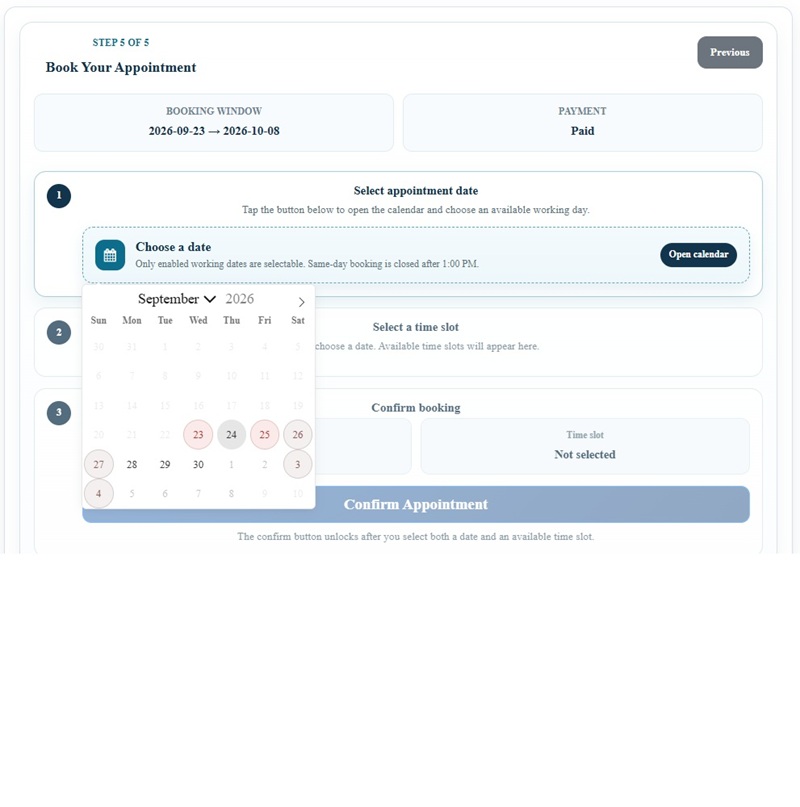
After opening calander selecting date now click on available time slot to visit the Consular Department in person for physical document verification.
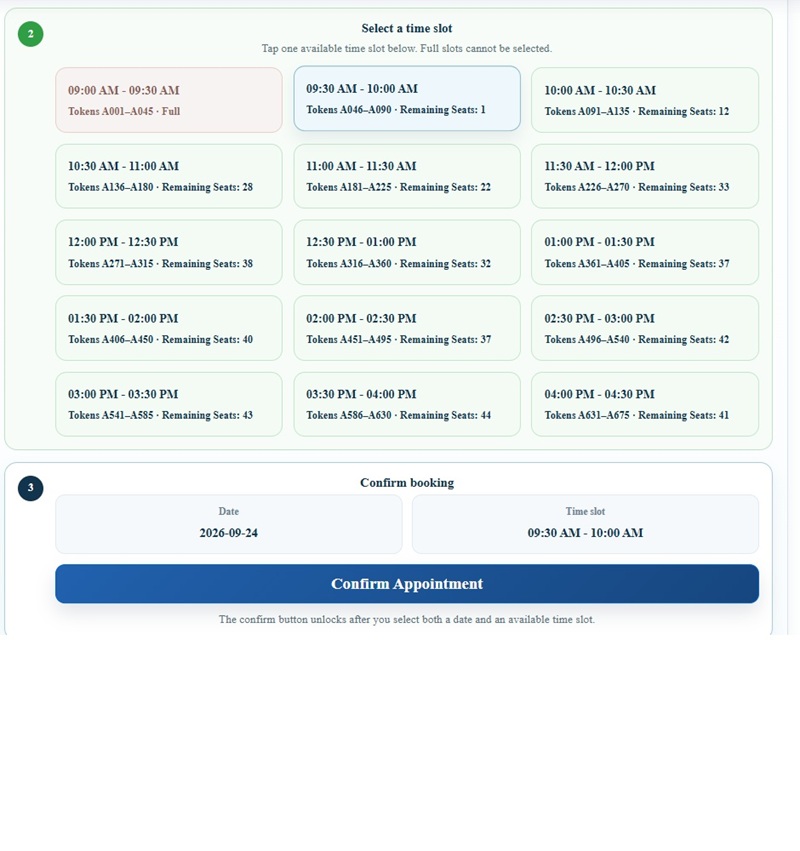
After selecting your desired time slot click on confirm appointment.
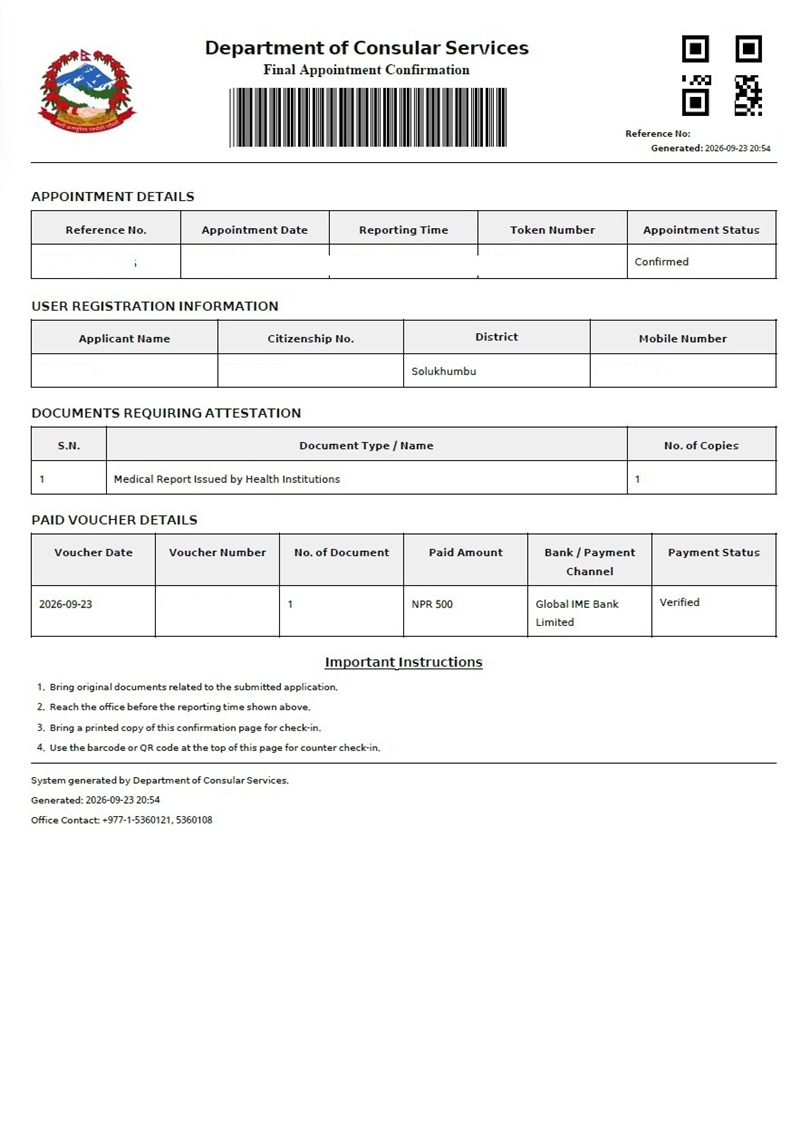
Download and print your payment receipt along with the appointment slip to present at the office on your scheduled date.
How Long Does MOFA Attestation Take in Nepal?
Under the online NEATS system, the consular attestation process generally takes 2 to 3 working days from start to finish. Digital pre-approval usually takes 24 to 48 hours, after which you can book an appointment and finalize the physical verification at the Department of Consular Services in Tripureshwor. To prevent delays, always ensure scanned uploads are clear and name/date details align across all credentials.
How Much Does MOFA Attestation Cost in Nepal?
The standard government revenue fee for document attestation at the Department of Consular Services (MOFA) in Nepal is NPR 500 per document. This fee is payable online through the NEATS portal via integrated digital payment gateways (such as ConnectIPS or eSewa/Khalti) or designated revenue counters once your pre-verification is approved. Keep in mind that prior verification stages—such as local ward recommendations, authorized English translations, or notary public verification—may incur modest separate charges. For hassle-free online form filling, revenue payment, and appointment processing, contact Saral Online Sewa (WhatsApp: 9811786100).
Conclusion
If navigating the online portals, converting multi-page files, or managing digital payment gateways feels overwhelming, you do not have to tackle it alone. Saral Online Sewa offers complete, end-to-end online service support to ensure your application moves forward without hitches.
From pre-submission document review and format compliance to portal data entry, revenue payment processing, and appointment tracking, Saral Online Sewa ensures your documents meet every administrative standard the first time. Reach out to Saral Online Sewa today to simplify your paperwork, avoid costly rejections, and move forward with your international journey with complete peace of mind.
“Hope you found this guide helpful. Best of luck with your documentation, and have a wonderful day ahead!”



0 Comments